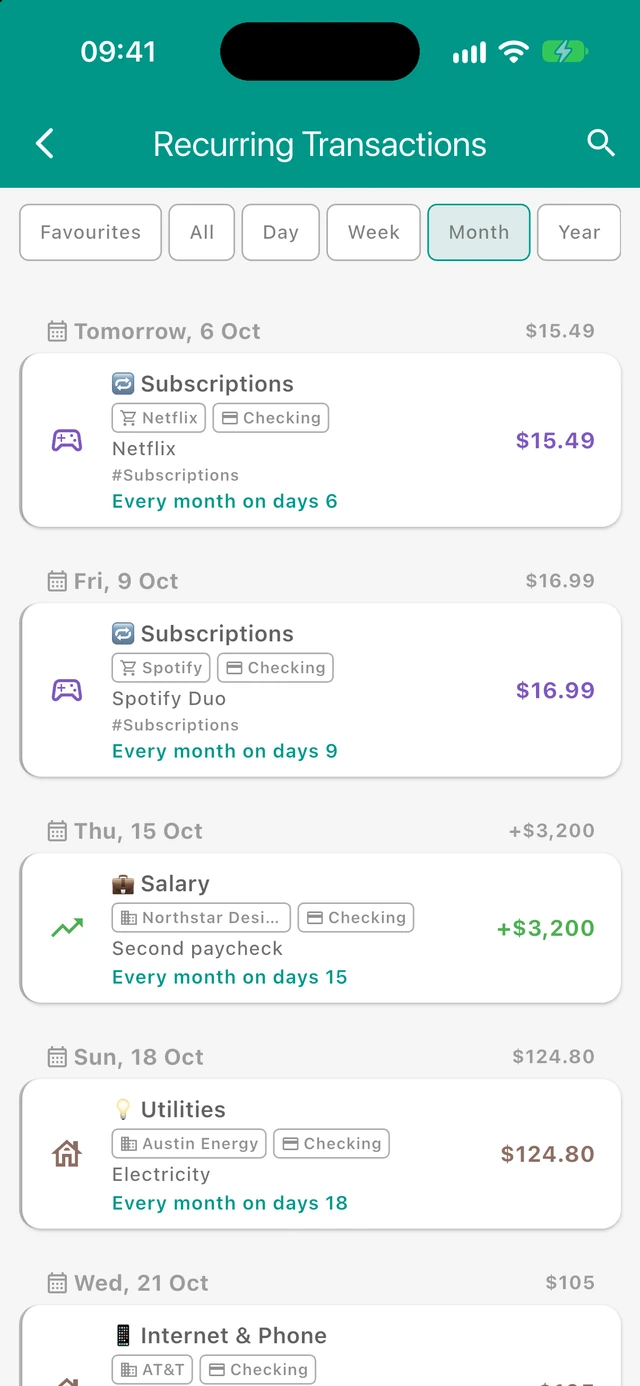
Accessing the Recurring Screen
You can access the Recurring Transactions Screen by:
- Tapping the repeat icon (↻) in the top bar of the Transactions screen
- Going to More → Advanced Features → Recurring Transactions
Understanding Recurring Transactions
Templates with an active repeat schedule automatically create transactions on that schedule. Marking a template as Favourite alone does not enable automatic repetition. Common examples include:
- Subscriptions - Netflix, Spotify, gym memberships
- Bills - Rent, utilities, phone bills, insurance
- Regular Income - Salary, freelance payments, rental income
- Scheduled Transfers - Regular savings transfers, investment contributions
- Recurring Fees - Bank fees, service charges
Scheduled templates generate transactions on their scheduled dates. Favourite-only templates wait for you to choose Add Transaction from their options.
Screen Layout
Filter Bar
At the top of the screen, you'll find filter buttons to quickly narrow down which recurring transactions to display:
- Favourites - The first filter; shows all templates marked as Favourite, whether scheduled or not, in your saved manual order
- All - Shows all templates (active and inactive, including favourites)
- Day - Only templates that repeat daily
- Week - Only templates that repeat weekly
- Month - Only templates that repeat monthly
- Year - Only templates that repeat yearly
- Not Active - Templates that have been saved but don't have an active recurrence schedule
When you open this screen, Favourites is selected if at least one favourite exists; otherwise All is selected. Tap any filter to switch the view. The selected filter is highlighted. Updates while the screen is open preserve your chosen filter. A scheduled favourite also appears in All and its matching frequency filter; a favourite without a schedule also appears in All and Not Active.
Search
Tap the search icon in the top right corner to find specific recurring transactions (tap again to close search). You can search by:
- Template description or notes
- Category name
- Budget section name
- Amount
- Account name (source or destination)
- Contact name
- Tags
- Recurrence pattern (e.g., "monthly", "weekly")
When searching, matching templates are displayed while non-matching ones are hidden.
Pro Version Banner
If you're using the free version of Budgetum, you'll see a banner at the top of the list indicating that the free tier is limited to 5 recurring transaction templates. The banner is hidden while search is open or when a search query is active. Upgrade to Pro for unlimited templates. Favourite-only, scheduled and inactive templates all count toward the same five-template free limit. A template that is both a favourite and scheduled counts once. Favourites do not receive a separate free allowance. At the limit, the Repeat field for creating a new template shows a Pro badge and opens the upgrade page; existing templates remain editable.
Recurring Templates List
Favourites List and Manual Order
Favourites appear as a flat list without date groups. Drag the small dotted grip at the left of a row to move it; the new order is saved immediately and remains after reopening the app. A template you newly mark as a favourite is added at the end of the list. Reordering is available only in Favourites. When a search query is entered, the drag handles are hidden; clear the query to reorder again. If saving the order fails, an error message appears and the list reloads its saved order.
Tap a favourite anywhere in its main row to open the same options as other templates: Add Transaction, Remove from Favourites, Edit, and Delete. Reordering does not change its schedule or transaction details. Backups preserve favourite marks and saved ordering.
Active Templates (Grouped by Next Date)
Outside the Favourites filter, active recurring templates are organized by their next scheduled occurrence date. Each date group shows:
- Calendar icon and date - When the next occurrence will happen (displayed in a friendly format like "Today", "Tomorrow", "Monday", or the full date)
- Total amount - The net amount for that date: income minus expenses. It shows a "+" when income is larger (for example, a $3,200 paycheck and $1,850 rent on the same day show +$1,350) and no sign when expenses are larger. Transfers and balance adjustments are not counted, and the total is hidden when the net is zero
Below each date header, you'll see the individual templates grouped under that date.
Template Display
Each recurring template shows the following information:
Main Row:
- Category icon (on the left) - The icon of the budget section this template belongs to
- Category or title - The name of the category, or for transfers and balance adjustments, a descriptive title. Outside the Favourites filter, a filled star after the name means the template is a favourite. The star is hidden on Favourites, where every row is already a favourite
- Amount (on the right) - The template amount with color coding:
- "+" prefix and income color = Income (uses your budget's Income section color)
- Section color = Expenses (matches the category's budget section color)
Additional Details (when applicable):
- Contact badge - Shows which person or business this recurring transaction involves
- Account badge - Shows which account is used
- Description - Any notes you added to the template
- Tags - Hashtags for additional categorization (shown as #tagname)
- Recurrence label - Shown only for active schedules. Inactive templates, including favourites without a schedule, have no recurrence label. A description of the active schedule (e.g., "Every month", "Every 2 weeks", "Every Monday", "1st and 15th of the month")
Inactive Templates Section
Templates that have been saved without an active recurrence schedule appear in two ways:
- When "Not Active" is selected – Only inactive templates are shown (no date groups).
- When "All" is selected – Active templates appear first, grouped by next date; inactive templates are listed at the bottom under a "Not Active" header. Frequency filters (Day, Week, Month, Year) show active schedules only.
- When "Favourites" is selected – Inactive favourites appear alongside scheduled favourites in your manual order.
These are useful for:
- Templates you've paused temporarily
- One-time templates you might want to reactivate later
- Drafts you haven't fully configured yet
The inactive section has a "Not Active" header and displays templates with a different visual styling.
Template Types
Regular Recurring Transactions
Standard income or expense templates linked to a budget category. These are the most common type—things like your monthly rent, weekly grocery budget, or salary.
Recurring Transfers
Templates for regular money movement between your accounts. Transfer templates show:
- A swap icon (↔) indicating a transfer
- The source and destination accounts with an arrow between them
- The transfer amount
Common uses: monthly savings transfers, regular investment contributions, credit card payments.
Recurring Balance Adjustments
Templates for regular balance corrections. These show:
- "Balance Increase" or "Balance Decrease" as the title
- A plus or minus icon indicating the adjustment direction
- The affected account
Common uses: recurring bank fees, regular interest payments, scheduled adjustments.
Working with Templates
Quick access from Budget and Transactions
When Favourites is selected and the list is not empty, a small hint below the filters explains: Hold + on Budget or Transactions to add from favourites. Tap its × button to dismiss it. The hint also disappears after you first open the favourites shortcut sheet, even if you close that sheet without adding a transaction. This is remembered after restarting the app. More → Reset Tutorial restores the hint, including after you have already used the shortcut. The hint is not shown in other filters or when there are no matching favourites.
Long-press the + button at the bottom center to open Favourites. This shortcut is available only when at least one favourite template exists; a normal tap still opens a blank Add Transaction form. The scrollable bottom sheet lists all favourites in the order saved on Recurring Transactions, including favourites with a repeat schedule. A star appears beside the Favourites title. Favourites appear directly on the sheet background as tappable rows separated by subtle dividers. Repeat schedule text is hidden in this shortcut; view schedules on Recurring Transactions. Tap anywhere on a row to close the sheet and open a new transaction prefilled from that template, using today’s date. Transfers and balance adjustments open their corresponding forms. Review the details and save; opening a favourite does not save a transaction. If its amount is 0, the number picker opens automatically (the source-account amount for transfers). Dismiss the picker to return to the form, or dismiss the favourites sheet to return to the screen without adding anything. Add or remove favourites, edit, delete, and reorder them on Recurring Transactions; those controls are not shown in this shortcut.
This shortcut uses the existing favourites and does not require a separate Pro upgrade. Creating templates remains subject to the shared free limit described above. Creating a manual transaction from a scheduled favourite does not change its repeat schedule. Zero-amount templates also open the number picker when you choose Add Transaction from this screen.
Template options
Tap a recurring template in the list to open an options sheet with:
- Add Transaction — create a one-off transaction prefilled from the template (category, amount, accounts, contact and tags where applicable), using today’s date. Review or change the details and save to create the transaction. The new transaction stays associated with the template for history and reporting.
- Add to Favourites or Remove from Favourites — mark or unmark the template immediately. The label matches its current state. This does not delete the template or change its schedule, amount, accounts, or other details. A newly added favourite appears at the end of the list. Adding it again after you remove it also places it at the end. The list updates as soon as you choose the option.
- Edit — open the Edit Template screen
- Delete — remove the template (existing transactions created from it are kept)
Opening the options sheet does not create a transaction. The Add Transaction subtitle explains that it creates a transaction from the template. Choosing Add to Favourites or Remove from Favourites closes the sheet and saves that change; you do not need to open Edit or save the template again.
Editing a Template
From the options sheet, choose Edit to open Edit Template.
For regular income or expense templates, the title area shows an Income or Expense badge. Transfers and balance-adjustment templates do not show this badge.
The three-dot menu (⋮) in the top right includes:
Change to income / Change to expense:
- Switches the template between income and expense
- Not shown for transfer or balance-adjustment templates
- Switching type swaps the from and to accounts
- If you switch to expense and the current category is an income category, the category is cleared and you must select a category before saving
Delete is also in this menu (see Deleting a Template).
Transaction Details:
- Amount and Start Date - The template budget amount and when the recurrence begins
- Category - The budget category (for regular transactions)
- Accounts - Source and/or destination accounts
- Foreign-currency amounts - If the primary account uses a currency different from the app's main currency, an extra Debited / Credited field appears for the account-side amount (same idea as Add/Edit Transaction). Occurrences copy both the budget amount and the account amount; no live rate lookup runs during generation
- Update from an occurrence - When you edit a transaction already linked to this template and change its amount, Edit Transaction can offer Also update recurring template amount so future occurrences pick up the new template amount → Add/Edit Transaction
- Contact - The person or business involved
- Description - Notes about this recurring transaction
- Tags - Any tags for organization
Recurrence Settings:
- Favourite - From the template options, choose Add to Favourites or Remove from Favourites. That change is saved immediately and does not delete the template or change its schedule. You can also open Repeat while editing and turn Favourite on or off; that choice is saved when you save the template.
- Recurrence pattern - How often and when the template repeats
- Options include: daily, weekly, monthly, yearly, or custom schedules
- You can set specific days of the week, days of the month, or create complex patterns
Transaction History:
- Below the form, you'll see a list of actual transactions that have been created from this template
- This helps you verify that the recurring transaction is working correctly
- Tap "Show More" to load additional history
Saving Changes
Tap the checkmark (✓) in the top right corner to save your changes. The template will be updated and future occurrences will use the new settings.
Deleting a Template
Open the three-dot menu (⋮) in the top right and choose Delete. You'll be asked to confirm before the template is permanently deleted.
Note: Deleting a template does not delete transactions that were already created from it. Those transactions remain in your history.
Recurrence Options
Budgetum supports flexible scheduling for recurring transactions:
Common Presets
- Daily - Every day
- Weekly - Every week on the same day
- Every 2 Weeks - Bi-weekly
- Monthly - Every month on the same date
- Yearly - Once a year on the same date
Custom Schedules
For more complex needs, you can create custom recurrence patterns:
- Specific weekdays - Every Monday and Wednesday
- Specific days of the month - The 1st and 15th of each month
- Nth weekday - The first Monday of each month, the last Friday
- Multiple months - Only in certain months of the year
- Custom intervals - Every 3 weeks, every 6 months, etc.
Schedule Limits
You can optionally set:
- End date - Stop the recurrence after a specific date
- Maximum occurrences - Stop after a certain number of transactions
Empty States
No Recurring Transactions
If you haven't set up any recurring transactions yet, or when the current filter has no matching templates (for example, you have only inactive templates and filter by "Month"), the screen displays:
- A repeat icon
- A message indicating you have no recurring transactions
This is a great time to set up your regular bills and income!
No Favourites
If Favourites is selected but contains no templates, the screen says: No favourites yet. Tap a template in another filter and choose Add to Favourites. This can happen after removing the last favourite while this filter is open. Switch to All or another filter, tap a template, and choose Add to Favourites. You can also mark a template as Favourite in Repeat options while editing it. On the next visit with no favourites, All opens by default.
No Search Results
When searching, if no templates match your query:
- An empty-results icon appears
- A message indicates no results were found
Try adjusting your search terms or clearing the search.
Creating Recurring Transactions
To save a favourite, a schedule, or both:
- Open Add Transaction and fill in its details, or edit a transaction that is not already linked to a template. The same Repeat control is available in transfer and balance-adjustment forms when template creation is allowed.
- Tap Repeat (the repeat icon/row, its arrow, or its switch when off) to open the options page.
- Turn on the Favourite switch at the top. When no favourite templates are saved, a small, muted helper beneath the switch explains that favourites let you quickly add transactions without a repeat schedule. It is hidden when you open Repeat with at least one saved favourite. Turning it on or off keeps the options page open and retains the choice in the parent form.
- For a favourite without a schedule, leave Do not repeat selected and use Back, or tap Do not repeat to return. For a scheduled favourite, select a repeat preset: the page returns immediately with both choices. Custom opens custom schedule settings; applying them also returns with the favourite mark preserved.
- Back in the form, a small filled star beside the Repeat field name identifies a favourite. There is no extra favourite subtitle; the existing schedule helper remains below the field when repetition is enabled. The switch represents automatic repetition: it stays off for favourite-only templates. Turning it off preserves the favourite mark but disables repetition. End and next-transaction controls are shown only when a schedule is enabled (the next-date control is available in forms that support it).
- Save the transaction or, when editing a template, tap the top-right checkmark. Returning from Repeat only updates the form; leaving the parent form without saving does not save those changes.
The template appears in Favourites if marked. Scheduled templates also appear in their frequency filter. To mark an existing template, tap it in any filter and choose Add to Favourites. To remove it, tap it and choose Remove from Favourites. Either choice is saved immediately; the template remains in All, and any active schedule continues. You can still change the favourite mark from Edit → Repeat, which is saved when you save the template.
Repeat is unavailable when adding receipt items or creating a transaction from a template, and is hidden when editing a transaction already linked to a template. Use Edit on the template itself to change its favourite mark or schedule. Favourite templates share the existing Pro limits described above.
How Recurring Transactions Work
Automatic Generation
Budgetum automatically generates transactions from your templates based on their schedule:
- The template tracks the "next occurrence" date
- When that date arrives (or passes), a planned transaction is created and appears in your Transactions list
- The transaction appears on your budget and in the Transactions list, and is marked as requiring confirmation: you can approve it (to clear the flag), edit and approve, or delete it. After you approve, account balances are updated to reflect the transaction.
- After each occurrence, the next date is calculated based on your recurrence pattern
Confirmation Required Block
Transactions generated from recurring templates (and any other planned transactions that require confirmation) appear in the Confirmation Required block at the top of the Transactions screen. They are also included in your budget totals and shown on the Budget screen. The block can be expanded or collapsed. From there you can approve a transaction (to clear the confirmation flag), edit it and then approve, or delete it. After you approve, account balances are updated to reflect the transaction.
Missed Occurrences
If you don't open the app for a while, Budgetum catches up by generating any missed occurrences. Past-due recurring transactions will appear in your history with their correct dates.
Tips for Managing Recurring Transactions
-
Set up all your bills - Enter your rent, utilities, subscriptions, and regular expenses so nothing gets forgotten
-
Include regular income - Add your salary, freelance payments, or other regular income sources
-
Use descriptive names - Add descriptions to templates so you remember what each one is for (e.g., "Netflix subscription", "Monthly gym fee")
-
Review regularly - Check the Recurring screen periodically to update canceled subscriptions or changed amounts
-
Use the filters - If you have many recurring items, use the frequency filters to focus on specific types
-
Check transaction history - Use the history in the edit screen to verify that transactions are being created correctly
-
Set appropriate accounts - Link each recurring transaction to the correct account so your balances stay accurate
-
Use contacts - Add contacts to recurring transactions to track who you pay or receive money from regularly
-
Foreign-currency templates - For subscriptions charged in another currency, set both the budget amount and the account Debited/Credited amount on the template so generated occurrences stay correct without needing the network
-
Pause instead of delete - If you temporarily stop a subscription, you can remove the recurrence without deleting the template, making it easy to reactivate later
-
Use the Confirmation Required block - Recurring-generated transactions appear there until you approve them; you can edit the amount (or other details) before confirming if needed