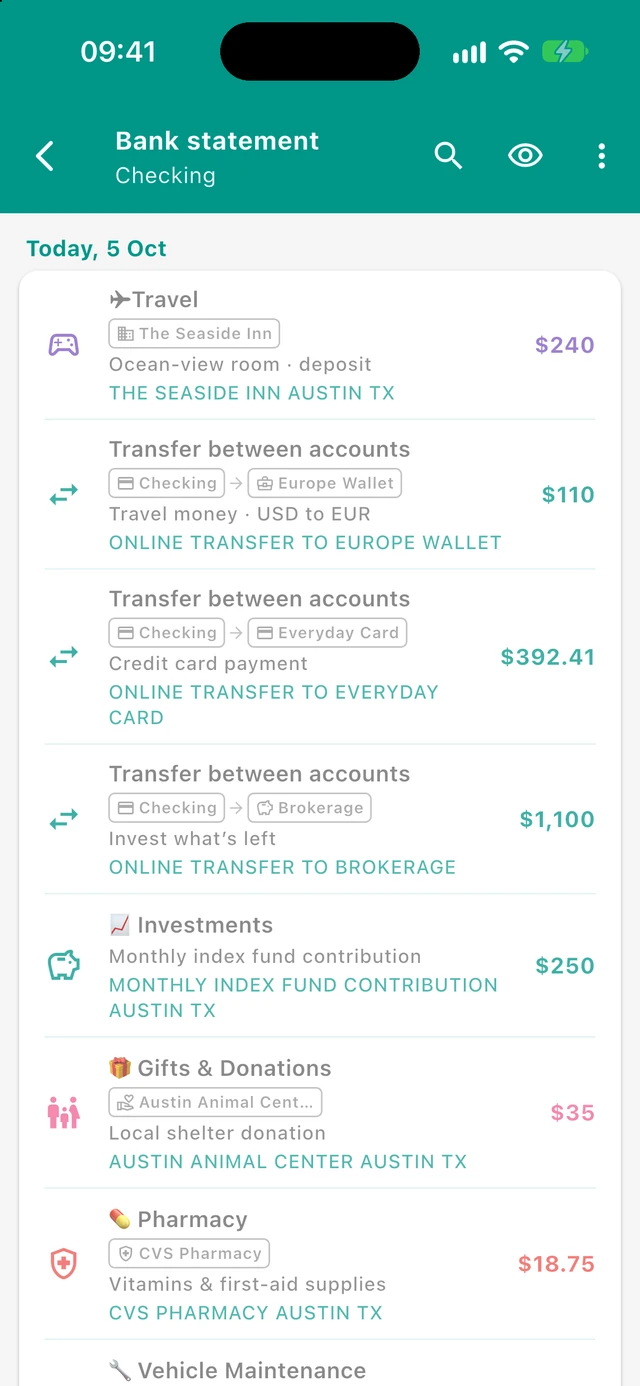
This feature is designed to speed up account reconciliation. It does not replace your full transaction history automatically. Instead, it helps you match, create, or ignore rows one by one or in batches.
Accessing Statement Import
You can open Statement Import from the Accounts screen in several ways:
- Top-bar upload icon (Match bank statement) — opens Statement Import; pick the account on the import screen if needed
- Accounts More menu — same Match bank statement action
- Account row more menu (or long-press the account row) — Match bank statement for that account (account is pre-selected)
Free users see a gold Pro badge on these entry points and are sent to the Pro upgrade page instead of import.
Availability:
- Available only in Budgetum Pro
- Each import belongs to a single account
- The English action label is Match bank statement (no Beta suffix on that action string)
What Statement Import Does
Statement Import compares:
- Imported statement rows from your bank file
- Existing account transactions already recorded in Budgetum
It helps you identify:
- Rows that already match existing transactions
- Existing transactions that appear in Budgetum but were not matched to the imported statement
- Statement rows that still need action
This works for:
- Regular income and expense transactions
- Transfers
- Balance increases and decreases
- Receipt groups, when several receipt items together equal one statement amount
Help Card
Before or while setting up an import (account + file + column mapping), a dismissible help card can appear with short steps and matching tips (auto-matched rows, unmatched ? rows, and that starting a new import only clears statement rows for that account).
- Title: Match your bank statement
- Dismiss with Got it!
- Dismissal is remembered; More → Tips & Assistance → Reset Tutorial restores it along with other tutorial hints
Supported Files
You can import:
- CSV
- XLSX
For best results:
- The file should contain a clear header row
- The header row should be placed directly above the transaction data
- The data should include at least a date, a description, and an amount representation
If Budgetum cannot detect the header row automatically, you can often fix it with Import options (the more menu on the Match columns card) instead of choosing another file:
- Select header row — pick which row in the file contains column titles (Date, Amount, Description, etc.). Budgetum re-reads the grid from that row.
- Date format — choose how ambiguous numeric dates (for example
03/04/2026) should be interpreted: automatic from your device locale, day/month/year, month/day/year, or year/month/day.
If the file cannot be read at all, choose a different file or export format.
Import Setup
Before saving the import, you configure how the source file maps into Budgetum.
1. Select a file
Tap the Statement file field and choose a CSV or XLSX file from your device.
While Budgetum processes the file, it shows status messages such as:
- Reading the selected file
- Analyzing the file structure
- Auto-matching columns
- Validating rows
2. Match columns
Use the more menu (three dots) on the Match columns card when you need Select header row or Date format (optional).
After the file is read, Budgetum asks you to match source columns to required fields:
- Date column
- Description column
- Amount column, or separate Credit and Debit columns
Each required field must use a different source column.
3. Choose an amount mode
You can import statement amounts in three ways:
Signed amount (+/-)
- Use this when one amount column already includes positive and negative values
- Positive values are treated as money entering the account
- Negative values are treated as money leaving the account
Not signed (expense by default)
- Use this when the statement has a single amount column without signs
- Imported rows are treated as expenses by default
Credit and debit columns
- Use this when the bank exports money in and money out into separate columns
- Budgetum calculates one signed amount from those two fields
4. Review the preview
Budgetum shows a preview of the first imported rows using the selected columns so you can confirm the mapping before saving.
5. Save the import
When validation succeeds, tap the check button in the top bar.
Saving the import:
- Stores the parsed rows for that account
- Remembers your column names for future auto-matching
- Starts the reconciliation view
- Builds matching rules from exact matches for future suggestions
Validation Rules
Budgetum checks the file before it saves anything.
Common validation requirements:
- The file must contain rows
- The required mapped columns must exist
- The date and description must be matched
- The amount mapping must match the selected amount mode
- Required fields must use different columns
- Each row must contain a valid date
- Each row must contain a valid amount
If any row fails validation, Budgetum shows the row number and stops the save so you can correct the mapping or choose another file.
Reconciliation View
After saving, the screen changes from setup mode to a date-grouped reconciliation list.
Rows are grouped by date and may appear in three states:
Matched rows
These statement rows were matched to one or more existing transactions in the selected account.
How automatic matching works:
- Budgetum builds match candidates from the account’s transactions in the imported date range:
- Each normal transaction is one candidate (amount is the signed movement for this account)
- Receipt lines that share a receipt ID are combined into one receipt-group candidate whose amount is the sum of those lines
- A statement row auto-matches only when there is exactly one remaining candidate with the same date and the same signed amount (compared to the cent)
- If several transactions share the same date and amount, Budgetum does not guess. The row stays unmatched until you choose manually
- Each candidate can be used by only one statement row
Receipt groups can therefore match a single bank charge that equals the total of several receipt items.
Matched entries appear slightly faded to show they are already reconciled. Opening a matched transaction can offer Unlink from statement to clear that link.
Existing-only rows
These are transactions that already exist in Budgetum for that account and date range but were not paired with any imported row.
This helps you notice:
- Transactions entered in Budgetum but not present in the statement
- Duplicate or extra records
- Timing differences between your app and the bank
Unmatched rows
These are statement rows that still need your decision.
Unmatched rows may show suggestion badges for:
- Category
- Contact
- Transfer to/from an account
Those suggestions come from learned matching rules based on previous exact matches (see below). The badges may highlight the most-used pattern. When approving a row with multiple compatible category/contact or transfer variants, you always choose a variant before anything is created.
Row Actions
Tap an unmatched row to open actions.
Approve
Approve creates one transaction using the statement date and amount, the current account, and a learned category/contact or transfer variant. A transfer variant shows Transfer to {account} for outgoing amounts or Transfer from {account} for incoming amounts. It creates a transfer between the current account and the remembered account, using the statement amount for both sides and leaving the transfer description empty. Both accounts must be active and use the same currency.
Approve is disabled if no compatible category or transfer suggestion exists; use Create transaction or Transfer to choose fields yourself. Different-currency transfers still use the Transfer form so you can enter both amounts.
With one compatible variant, creation starts immediately. With multiple variants, Select variant opens first. Variants are sorted by usage, most-used first; ties use the most recent usage. No counts are shown beside variants. Selecting one creates the transaction; dismissing the picker creates nothing.
Approve all (N)
In an unmatched row's actions, Approve all (N) appears when more than one unmatched row in the same account's current import shares the same cleaned description and can use at least one of the selected row's compatible variants. The group includes rows hidden by search and spans all dates in the import. Each transaction keeps its own date and amount.
The variant choice works like Approve, and the selected category/contact or transfer account applies to compatible rows in the group:
- An expense category accepts outgoing expenses and incoming refunds.
- An income category accepts incoming amounts only. Outgoing rows stay unmatched.
- A transfer variant accepts only its remembered direction: outgoing to that account or incoming from it. Rows in the opposite direction stay unmatched.
- Zero amounts are not approved.
N is the eligible group size before choosing a variant. The number created can be smaller when the chosen variant excludes rows with an incompatible direction. A completion message reports how many transactions were created. Already matched rows are excluded, and further approval actions are unavailable while approval is in progress. Transfer approval checks current matches again, so a transfer already created from the other account’s statement can match instead of being created twice. Matching still requires the same date and account amount. If several existing transfers could fit, use Select existing to resolve the ambiguity; approval leaves those rows unmatched.
Create transaction
Creates a normal income or expense transaction from the statement row.
Budgetum pre-fills:
- The selected account
- The statement date
- The absolute amount
- Suggested category and contact, if available
Transfer
Creates a transfer between accounts using the statement row.
Budgetum pre-fills:
- The statement date
- The amount
- The selected account as the source or destination, depending on whether the row is outgoing or incoming
Increase balance
Creates a balance increase linked to the imported row.
Decrease balance
Creates a balance decrease linked to the imported row.
Select existing
Opens Select transactions so you can manually link the statement row to existing Budgetum activity on the same date.
You can select:
- One transaction whose amount already equals the statement amount, or
- Several same-day candidates (including receipt groups) whose amounts add up exactly to the statement amount
The screen shows:
- Remaining amount still needed
- Selected of target totals
- A check action that stays disabled until the selected total matches the statement amount exactly
This is useful when:
- More than one possible transaction exists for the same date and amount (auto-match stayed unmatched on purpose)
- One bank charge covers several Budgetum transactions
- You already recorded the activity and just want to confirm the link
Manual links are remembered by a row fingerprint (account, date, amount, cleaned description) and the selected transaction IDs. If you clear the import and re-import the same statement later, Budgetum can restore those links automatically when the matching transactions are still available.
Ignore
Removes the imported row from the saved import without deleting any real transaction.
Use this when the statement row should not be tracked in Budgetum.
Bulk Actions And Learned Suggestions
Statement Import can learn from successful exact matches.
When Budgetum finds a reliable exact match, it can remember:
- A cleaned version of the statement description (noisy prefixes, dates, times, and short reference codes are reduced so similar merchant text still matches)
- The category used
- The contact used
- For a transfer, the other account and direction, stored separately for incoming and outgoing rows
- How often that pattern was used
Transfer patterns are learned both when you create a transfer using a statement row’s Transfer action and when that row is matched to one existing transfer, automatically or through Select existing. The date and amount must match the row. Only transfers between accounts with the same currency and equal amounts on both sides teach quick-approval patterns; a grouped match to several transactions does not. Transfer suggestions are hidden if either account is archived, the other account is deleted, or the accounts no longer use the same currency.
Learning is specific to the imported account and statement description. Incoming and outgoing transfer patterns remain separate even when their descriptions are identical; the amount’s sign determines direction, without removing “from” or “to” from the description.
Later, unmatched rows with a similar cleaned description can show suggested badges. Use Approve for one row or Approve all (N) in that row's actions for repeated descriptions. When multiple compatible patterns exist, choose one in Select variant, ordered by usage and then recency. There is no global action to create transactions across unrelated descriptions.
Search And Visibility Options
After an import is saved, the top bar offers extra tools:
Search
Search helps filter the reconciliation list by terms such as:
- Description text
- Date
- Amount
- Suggested category
- Suggested contact
- Suggested transfer account and direction
Show or hide matched rows
You can hide already matched transactions to focus only on what still needs attention. Use the eye icon in the top bar (Hide matched transactions / Show matched transactions).
When matched rows are hidden and nothing else is left (no unmatched statement rows and no existing-only transactions), the screen shows a check mark with All rows are matched: the account is fully reconciled for this import. Tap the eye icon again to see the matched rows.
Start New Import
From the more menu, you can choose Start new import.
This action:
- Clears the saved imported statement rows for that account
- Keeps your real Budgetum transactions
- Keeps learned column matches
- Lets you import a fresh file for the same account
Use this when you selected the wrong file, need a newer statement, or want to restart reconciliation from scratch.
Important Notes
- Statement Import is account-specific
- Matching compares statement rows only against transactions in that account and within the imported date range
- Auto-match requires a unique same-date, same-amount candidate; duplicates stay unmatched until you use Select existing
- You can match one statement row to multiple same-day transactions when their amounts sum to the statement amount
- Manual matches can persist across clearing and re-importing the same statement file for that account
- Budgetum does not delete existing transactions when you restart or clear an import
- Ignoring a row removes only the imported statement row, not any transaction
- Manual or auto-linked rows can later be opened in their normal edit screens, where you can unlink them from the statement
Tips For Best Results
- Use statement files with a clear header row directly above the data.
- Start with accounts you reconcile often, such as your main checking account or card.
- If possible, import a larger date range instead of a very short statement. More rows give Budgetum more chances to auto-match existing transactions and learn useful category/contact suggestions.
- If your file uses separate money-in and money-out columns, choose Credit and debit columns.
- Hide matched rows after the first pass to focus on what still needs action.
- When several Budgetum transactions share one bank charge, use Select existing and multi-select until Remaining reaches zero.
- If same-day duplicates block auto-match, that is intentional—use Select existing to pick the correct one.
- Let the feature learn over time. Repeated exact matches improve future suggestions for categories and contacts.
- When Select variant opens after Approve or Approve all, pick the category/contact or transfer pattern that fits the statement description. Incoming refunds can use an expense category.