In the app, this screen is labeled "More" in the bottom navigation and in the screen header (the tab and title both say "More").
Accessing the Settings Screen
You can access this screen by:
- Tapping the "More" tab in the bottom navigation
If you have upgraded to Budgetum Pro, a gold "Pro" badge will appear next to "More" in the header.
A small dot can appear on the More tab when a rating or feedback invitation is ready. Closing the rating card on Budget clears the rating-related dot but leaves the rating card available in More. A separate eligible feedback invitation can still show the dot.
Screen Layout
The Settings screen is organized into sections, each presented as a card with related options:
- Upgrade to Pro (only shown if you haven't upgraded yet)
- Advanced Features - Access to powerful tools for organizing your finances
- Appearance - Customize how the app looks
- Localization - Language, currency, and number formatting preferences
- Tips & Assistance - Tutorial, assistant, and quick video tips
- About - App information, feedback, and legal links
- Official Links - Budgetum website and community/support links
- Other - Extra features and fun tools
Upgrade to Pro
If you're using the free version, the first card invites you to upgrade to Budgetum Pro.
What You Get with Pro
Tapping this option opens the Pro upgrade page, which explains the benefits:
- Support Development - Your purchase helps fund continued app development and new features
- More Features - Pro users get access to optional and additional features; tap List to see examples such as more than 5 recurring transactions, more than 5 tags, bank statement matching, and Saved Sets
- Limited Time Pricing - Early supporters get the best price
Making the Purchase
- The upgrade is a one-time payment (not a subscription)
- Tap the upgrade button to purchase through the App Store
- After purchase, the "Pro" badge appears throughout the app
- The upgrade card disappears from Settings once you're a Pro user
Restore Purchases
If you've already purchased Pro (perhaps on another device), tap Restore Purchases on the Budgetum Pro card to restore your Pro status without paying again.
Advanced Features
This section provides quick access to powerful organizational tools.
Backup
Protect your financial data by creating backups. Tapping this option opens the Backup page with two main functions:
Export Backup
- Tap Export Data to create a backup file of all your data
- Opens a share sheet so you can save the file to cloud storage (iCloud, Google Drive, Dropbox, etc.), email it to yourself, or save it anywhere you prefer
- The backup file is named with the date (e.g.,
BUDGETUM_2024-01-15.backup) - Records when you last created a backup
Restore from Backup
- Tap Restore Data to restore data from a previously created backup file
- Select a
.backupfile from your device or cloud storage - Important: Importing a backup replaces ALL your current data - you'll be asked to confirm before proceeding
- Use this to restore data or transfer your information to a new device
Backup Reminders
- The Settings screen shows your last backup date
- If it's been more than 60 days since your last backup (and you've been using the app for at least 32 days), the backup option will appear highlighted to remind you to back up your data
Import / Export
Open Import / Export to export transactions as CSV (or a desktop-analytics ZIP), or to import transactions from a Budgetum CSV or another app's CSV. The screen title is Import / Export.
At the top of the page, a Columns Explanation section documents every export column and transaction type. Use it as the reference when editing a CSV before import.
Export
Export your transaction history for spreadsheets or for Budgetum Desktop Analytics.
Period options:
- All time - Every transaction ever recorded
- Month - A specific month (pick the month after choosing this option)
- Year - A specific year (pick the year after choosing this option)
- Custom period - Transactions between a start date and an end date you choose
Include analytics data:
- When this checkbox is off, Export CSV shares a single
.csvfile - When it is on, Export CSV shares a
.zipnamed like a Budgetum analytics package. The ZIP contains:transactions.csv- the same transaction exportanalytics.json- extra metadata for Desktop Analytics (categories, contacts, tags, accounts, recurring templates, saved sets, and related display data)
Desktop analytics:
- After export, use the file at budgetum.app/analytics on a computer
- The site reads the file locally in your browser; transaction data does not leave your device
- Tap About desktop analytics on this screen for a short in-app preview of the desktop reports, privacy notes, and a copyable link to
https://budgetum.app/analytics
Export columns (CSV):
id- Portable transaction ID. Keep this column to avoid duplicate transactions during importdate- Date inYYYY-MM-DDformatamount- Budget amount: income positive, expense negative;0for transfers and balance rowsfrom_amount/to_amount- Amounts debited from / credited to the related accountstype-expense,income,offset_income,transfer,balance, orinitial_balancedescription- Short notesection/category- Section and category namescontact- Contact name (payee/payer)from_account_group/from_account/to_account_group/to_account- Account group and account namestags- Semicolon-separated tags (for exampleFood;Delivery)receipt_id- Receipt identifier used to group receipt linescategory_type- Expense category type:needs,wants, orsavings(empty for income and other types)section_icon/section_color- Material icon name and hex color for the sectioncontact_type- Contact type key (for examplestores,companies,individuals)from_account_group_icon/to_account_group_icon- Material icon names for account groupsfrom_account_currency/to_account_currency- Currency codes of the related accountscurrency- Currency of the budget amount (from-account for expenses, to-account for income, main currency as fallback)is_recurring-trueif created from a recurring template; empty otherwisecount- How many units a receipt line represents. On import, this is used only when the row has a receipt id. Other rows are stored with count 1, and the amount is not multiplied by count
Import
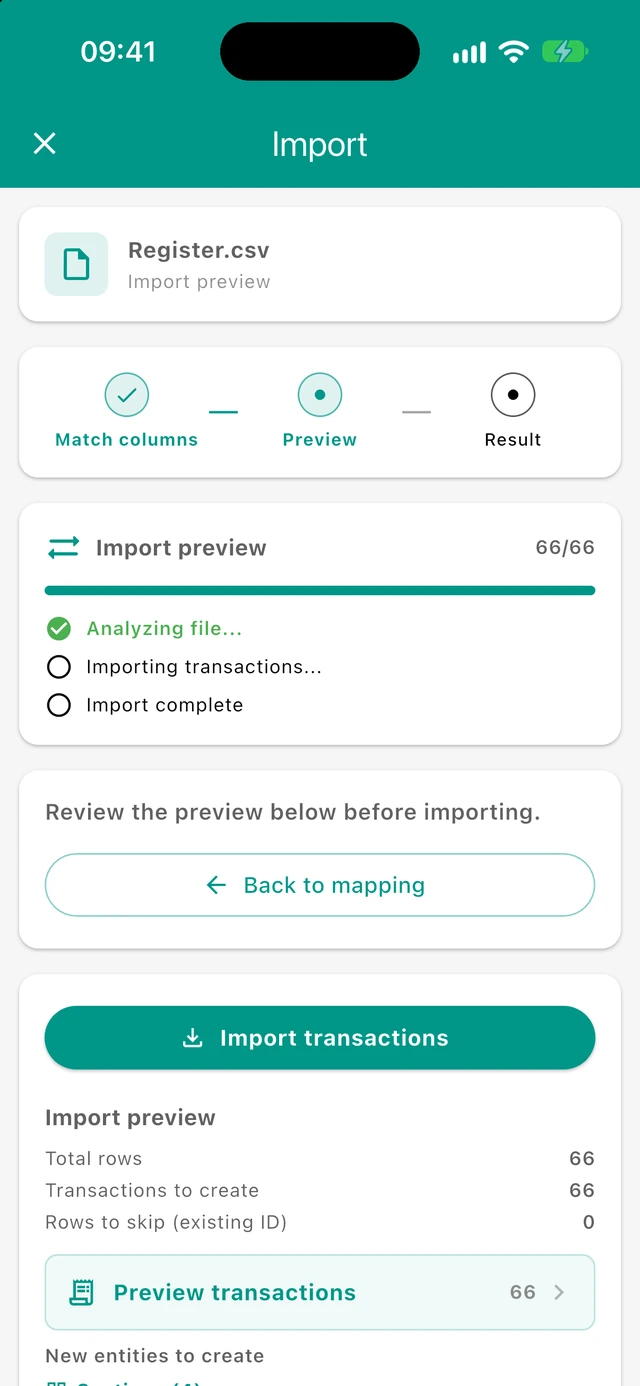
You can import a Budgetum CSV export, or a CSV from another app after matching columns. Budgetum transaction IDs skip rows that already exist; other CSV files are imported as new transactions after preview.
Before you import:
- Create a backup first. Import creates transactions and new entities in bulk, and imported transactions cannot be undone automatically
- The import screen offers Create backup and explains that a backup is recommended
Choosing a file:
- Tap Choose CSV file
- Budgetum analyzes the file
- Follow the path that matches the file type
Budgetum CSV export:
- Recognized by Budgetum export headers
- Rows whose
idalready exists are skipped - New rows can create missing sections, categories, contacts, tags, account groups, and accounts by name
- You get a preview (counts to create/skip, invalid rows, new entities), can open a transactions preview, then confirm Import transactions
YNAB Register.csv:
- If Budgetum detects a YNAB register export, you can choose:
- Use YNAB import mode - Imports the register directly and pairs rows such as
Transfer : Savingsinto one transfer- Inflows categorized as Inflow: Ready to Assign (older exports: To be Budgeted) become income in an Income category in your income section (the category and section are created if missing), with the payee as the contact
- Inflows in YNAB's Income category group become income in the same category name (for example Income: Salary → Salary)
- Any other inflow (money returned to an expense category, such as a store refund) becomes a refund in that category, so it reduces that category's spending instead of counting as income
- Starting Balance rows become the account's opening balance, not income; starting balances of 0 are skipped
- Use generic mapping - Treats the file like any other external CSV and lets you match columns yourself
- Use YNAB import mode - Imports the register directly and pairs rows such as
Other CSV files (generic mapping):
- Match columns - Map your file's columns to Budgetum fields
- Preview - Review what will be created, skipped, or flagged
- Result - See created / skipped / invalid counts after import
Required mapping fields:
- Date column - Transaction date (common date formats are accepted)
- Amount type - How amounts are signed in your file:
- Signed amount (+/-) - Positive = income, negative = expense
- Not signed (expense by default) - Positive amounts treated as expenses
- Not signed (income by default) - Positive amounts treated as income
- Credit and debit columns - Separate money-in and money-out columns
- Amount column (or credit/debit columns, depending on amount type)
- Category column - Required for budget rows. Empty category rows become transfers when both transfer accounts are present, or balance adjustments when a single account is present
Optional mapping fields:
- Description, section, contact, tags, and a single account column
- File contains transfers - When enabled, also map source and destination account columns. Rows with both transfer accounts and no category become plain transfers; rows with a category stay budget transactions
How Budgetum interprets mapped rows:
- Expenses and income are detected from amount direction (and your amount-type choice)
- Missing expense sections can fall back to an Imported section
- New accounts can be placed under an Imported account group when group data is missing
- Invalid rows must be fixed (or remapped) before import; you can open an issues review that shows mapped Budgetum values per problem row
After import:
- Summary shows created, skipped (existing ID), and invalid counts
- Warnings may appear (for example an unrecognized contact type falling back to Stores)
- You can pick another file and run again
Recurring Transactions
Manage your recurring transactions - repeating income and expenses that happen on a regular schedule.
- View all your recurring transaction templates
- Create new recurring transactions
- Edit or delete existing ones
- See when each recurring transaction is scheduled next
For more details, see the Recurring Transactions documentation.
Contacts
Manage the contacts you've created for tracking who you transact with.
- View all your contacts
- Add new contacts
- Edit or delete existing contacts
- See transaction history for each contact
Contacts help you track spending and income by person, company, or store.
Global Categories
Manage your expense and income categories that are available across all budgets.
- View all global categories organized by sections
- Add new categories
- Edit category names and icons
- Delete unused categories
Global categories appear in every budget, making it easy to maintain consistent tracking.
Tags
Manage tags for organizing and filtering your transactions.
- View all your tags
- Create new tags
- Edit or delete existing tags
Tags let you add flexible labels to transactions beyond categories, like "vacation", "business", or "gift".
Sets
Saved Sets lets you store reusable transaction conditions so you can quickly reopen the same filtered group of transactions later.
This option is available in Budgetum Pro.
- Create named sets of include and exclude conditions
- Limit sets to a custom date range or leave them open-ended
- Open transactions or analytics for the matching results
- Apply bulk updates to all matching transactions
This is especially useful for repeated analysis, cleanup after imports, and large-scale transaction edits.
Appearance
Customize how Budgetum looks to match your preferences.
Theme Mode
Choose how the app appears:
- Light - Bright background with dark text
- Dark - Dark background with light text (easier on the eyes in low light)
- System - Automatically matches your device's appearance setting
Your current selection is shown next to the option.
Primary Color
Choose the accent color used throughout the app for buttons, highlights, and important elements.
- Tap to open a grid of color options
- Select any color from the palette
- The color is applied immediately throughout the app
- A checkmark indicates your current selection
Localization
Configure language, currency, and number formatting to match your region and preferences.
Language
Set the language used throughout the app.
Available Languages:
- English
- Українська (Ukrainian)
- Русский (Russian)
- Deutsch (German)
- Português (Portuguese)
- Français (French)
- Español (Spanish)
Your current language is shown next to the option.
Currency
Set your primary (main) currency. This is the default currency used for new accounts and transactions.
- Search for any currency by name or code
- Popular currencies (USD, EUR, GBP, UAH, PLN) appear at the top
- Each currency shows its symbol and international code
- Your current selection is marked with a checkmark
Note: This sets your default currency. Individual accounts can still use different currencies for tracking foreign accounts.
Changing the main currency: Budgetum asks for confirmation (Change Main Currency?). Existing budget amounts keep their numbers and are only shown in the new currency—they are not converted. Account balances stay in each account’s own currency.
Number Format
Choose how numbers are displayed throughout the app.
Available Formats:
- System - Uses your device's regional settings
- 1,234.56 - Comma for thousands, dot for decimals (US/UK style)
- 1.234,56 - Dot for thousands, comma for decimals (European style)
- 1 234,56 - Space for thousands, comma for decimals
- 1 234.56 - Space for thousands, dot for decimals
- 1234.56 - No thousands separator, dot for decimals
- 1234,56 - No thousands separator, comma for decimals
Your current format is previewed next to the option.
Hide Currency Symbol
Toggle this option to hide currency symbols throughout the app.
- When on, amounts display as just numbers (e.g., "1,234.56")
- When off, amounts include the currency symbol (e.g., "$1,234.56")
This is useful if you only use one currency and find the symbols distracting.
Hide Numbers
Toggle this option to hide all monetary amounts in the app.
- When on, amounts are hidden (useful for privacy when someone might see your screen)
- When off, amounts display normally
This is a quick privacy feature - turn it on before showing your phone to someone, then turn it off when you're done.
Tips & Assistance
Access assistance and learning resources.
Reset Tutorial
Resets all tutorial hints and guides throughout the app, including the favourites shortcut hint. That hint appears again when you open Recurring Transactions with a nonempty Favourites list, even if you previously dismissed it or used the long-press shortcut.
- Tap to restore all the helpful tips that appear when you first use features
- Useful if you want to review how features work
- A confirmation message appears when the reset is complete
Assistant (ChatGPT)
Opens the Budgetum Assistant in your browser to help with app usage questions.
- Provides guidance on how to use Budgetum features
- Useful for quick "how do I..." questions
- Opens as an external link
Quick Tips on YouTube
Opens an in-app YouTube Shorts list of short Budgetum usage tips (overview, copy transaction, long-press actions, analytics drill-down, calculator percentages, emoji categories, section/category details, shortcut circles, Needs/Wants/Savings, changing the plan, mini-games, and similar).
- Tap a tip to open that Short externally
- Open full playlist at the top opens the full YouTube playlist in the browser
About
Information about the app, ways to provide feedback, and legal documents.
Rate App
Opens the App Store review form on iOS or the Google Play app listing on Android. On Android, find Rate this app and select the stars. You can return to Budgetum without submitting a rating.
- Your feedback helps other users discover Budgetum
- Reviews and ratings help prioritize new features
- Takes just a moment to share your experience
Budgetum shows an Enjoying Budgetum? card near the top of More after either at least 10 saved transactions or 7 elapsed days since the recorded first-open date. For existing installations, that date may have been initialized from the earliest saved transaction. The count is app-wide, not limited to the selected budget period. The invitation is available to both free and Pro users, unless a previous rating invitation was dismissed or its rating action was used.
The same card appears on Budget below the summary (or at the top of the scrollable content if the summary is hidden). Its × / Close button permanently hides it on Budget and clears the rating-related More dot. The More card remains available and has no close button. Changing budget periods or restarting the app does not restore the Budget card.
Tapping Rate App on either card opens the store as described above and hides both cards after the store link opens successfully. This does not mean a rating was submitted: returning without rating still leaves both cards hidden. If opening the store fails, an error message appears and the invitation remains available. The regular Rate App row in More remains available; using it also hides the invitation cards.
After about 50 days since the recorded first-open date — and only once the More rating card is no longer eligible — More may show a You've been using Budgetum for a long time feedback card instead. It opens email with a short template via Tell me and can be dismissed with the × in the top right. Closing only the Budget rating card does not make this feedback card appear while the More rating card is still eligible. The rating and feedback cards never appear together in More.
Say thanks
On iOS and Android, open More → About → Say thanks, directly below Rate App. The heart row is available to both free and Pro users and opens a bottom sheet for optional tips to the developer. The sheet introduces Danylo Rudenko, who has been building Budgetum on his own in Ukraine for over two years. The sheet introduces Danylo Rudenko, who has been building Budgetum on his own in Ukraine for over two years.
- Choose one of four tip amounts, based on USD $1, $3, $5, and $10. The buttons display the store's actual localized prices; your Budgetum currency and Hide Numbers / Hide Currency Symbol settings do not change purchase prices.
- No amount is preselected. Tap a price to open the App Store or Google Play purchase confirmation. Each tip is a separate, one-time payment; it does not unlock Pro or any additional features. You can tip again later.
- When you open the sheet, a progress indicator appears while prices load. On Android, Budgetum also checks for any unfinished tips before enabling a new purchase. Only amounts available from the store are offered. If prices or the purchase check are unavailable, Try again retries them. A previously paid tip can still finish even if its price cannot currently be loaded.
- While a payment is pending, the amount buttons are disabled. You can close the sheet; closing it does not cancel a payment already submitted to the store. Cancel through the store confirmation to return to the amount choices. If the store confirmation has closed but the sheet still shows a progress indicator, close and reopen Say thanks. Budgetum checks for outstanding purchases before returning to the amounts; a pending payment or a paid tip that still needs processing remains protected from another purchase. If Google Play confirms that a previously pending payment is no longer outstanding, the amounts become available again.
- A successful tip shows Thank you! and a personal thank-you message. Close the sheet to return to More. If the payment finishes after you close the sheet, reopening Say thanks during the same app session shows the thank-you message.
- If a purchase fails, an error appears and you can try again. If the store reports payment received but processing could not finish, Try again finishes that existing purchase without charging again; new tips are disabled until it finishes.
- Close the sheet by swiping down or by tapping outside it. Reopening after dismissing the thank-you message offers the amounts again.
- Tips do not create budget transactions. Completed tips are not restored as Pro purchases, and the tip sheet has no Restore Purchases button.
Report a Problem
Opens your email app with a pre-filled message to send feedback or report issues.
- The email is automatically addressed to the developer
- Your app version, platform (OS and version), and language are included to help with troubleshooting
- Describe any problems or suggestions you have
Privacy Policy
Opens the Privacy Policy in your web browser, explaining:
- What data Budgetum collects
- How your data is used and protected
- Your privacy rights
Terms of Service
Opens the Terms of Service in your web browser, outlining:
- Rules for using the app
- Your rights and responsibilities
- Legal information
Version
Displays the current version of Budgetum you have installed.
- Useful when reporting problems or checking if you have the latest update
Official Links
Quick access to Budgetum's official external pages and community.
Official Website
Opens budgetum.app in your browser.
- Learn more about Budgetum
- See product and support information
Reddit Community
Opens the r/Budgetum subreddit where you can:
- Connect with other Budgetum users
- Share tips and suggestions
- Get help from the community
- Stay updated on new features and announcements
Patreon
Opens the official Patreon page.
- Support Budgetum development
- Follow ongoing updates from the creator
Social and Video Channels
The Official Links section can also open Budgetum's YouTube, TikTok, Instagram, and X profiles. These links are external and are used for updates, quick tips, and community content.
Other
Additional non-core features.
Snake Game (BETA)
A small, hidden Snake game so you can take a short break from budgeting — no effect on your data. Open it via More → Other → Snake Game (BETA).
Idea: Classic Snake with a twist: the food tries to run away from you. Move the snake, chase and eat the three food types (meet the quotas at the top), avoid walls and your tail. You have 3 lives; the game gets faster as you eat. Use swipe or on-screen D-pad (switch in the ⋮ menu when paused). Just for fun.
Merge Drop
Another mini-game available from More → Other → Merge Drop. It is a separate casual game and does not change any financial data.
Balance Tower
Another mini-game available from More → Other → Balance Tower. It is also just for fun and is independent from your budgeting data.
Tips for Using Settings
-
Back up regularly - Create backups at least monthly, or before making major changes. Store backups in cloud storage for safekeeping.
-
Try different themes - Dark mode is easier on the eyes at night and can save battery on phones with OLED screens.
-
Match your region - Set your language, currency, and number format to match your local conventions for the most natural experience.
-
Use the privacy toggle - The "Hide Numbers" option is perfect when you're in public and don't want others to see your balances.
-
Export for analysis - Use Import / Export to download a CSV for spreadsheets, or enable Include analytics data and open the ZIP at budgetum.app/analytics on a computer (the file is read locally in the browser).
-
Restore purchases on new devices - If you upgrade your phone, remember to restore your Pro purchase rather than buying again.
-
Check for updates - Look at the version number occasionally and update the app from the App Store for the latest features and fixes.
-
Join the community - The Reddit community is a great place to learn tips from other users and suggest features.